Blog Kiosk Mode
Kiosk Mode
Maestro on the shop floor — fewer taps, no fumbling with passwords
By Cabinetshop Maestro, LLC • Updated 2026-04-30
Maestro works great for office staff who are already on the computer all day. But for shop-floor guys, stopping to type out an email and password every time you mark a task complete or start a timer? That gets old fast.
So we built a simpler way in.
Tap in, get to work
Set up a kiosk on a shared device out in the shop — a tablet, a touchscreen, an old computer, whatever you've got with internet access. Each crew member taps a four-digit PIN and they're in.
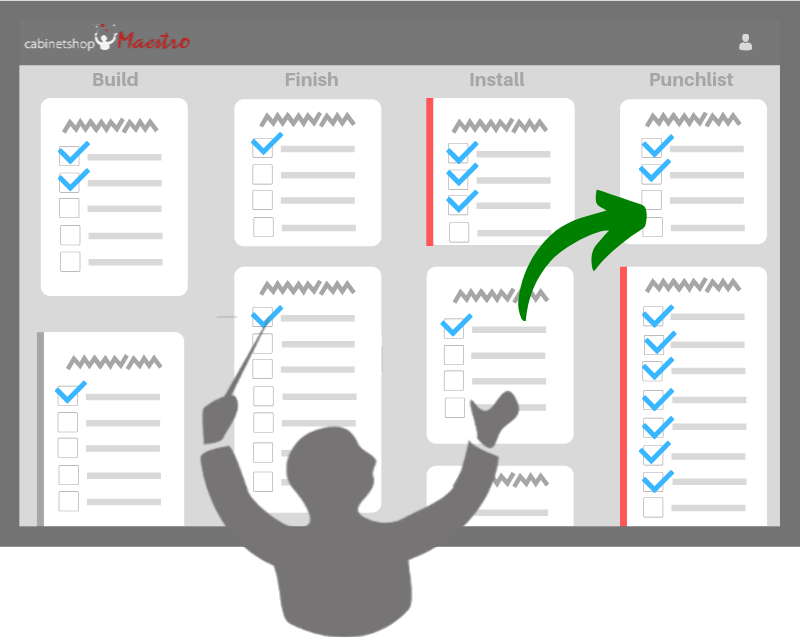
From there they can see their tasks, mark them complete, start and stop timers, pull up job info, and check the workflow boards to see where everything stands. When they're done they log out — or after a few minutes of inactivity, the kiosk signs them out automatically and waits for the next person.
Setup takes about a minute
From the device you want to use as the kiosk, sign in as a CEO and head to Lists, Reports & Settings → Custom Company Settings. There's a new Kiosk Devices tab. Flip it on, add four-digit PINs for your team, and that's it. Need to switch the device back to email/password? Just tap the Kiosk button on the left. You can manage PINs from any computer afterward — doesn't have to be the kiosk itself.
The office still gets what it needs
Time data, task updates, and job progress all flow back into Maestro the same way they always have. Kiosk Mode just removes the friction at the point of entry — your shop floor doesn't slow down to give the office what it needs.
Fewer taps. No fumbling.
Just tap in and get to work. That's the whole point.
Already a customer? A CEO on your account can turn it on under Custom Company Settings → Kiosk Devices. New here? Start a free full-featured trial and try it in your shop.
Try Cabinetshop Maestro® Today!
Nothing to download, nothing to install, and no contracts.